Move Files from One Folder to Another using PowerShell
Problem
In this blog post, we will show you different ways to move files from one folder to another using PowerShell.
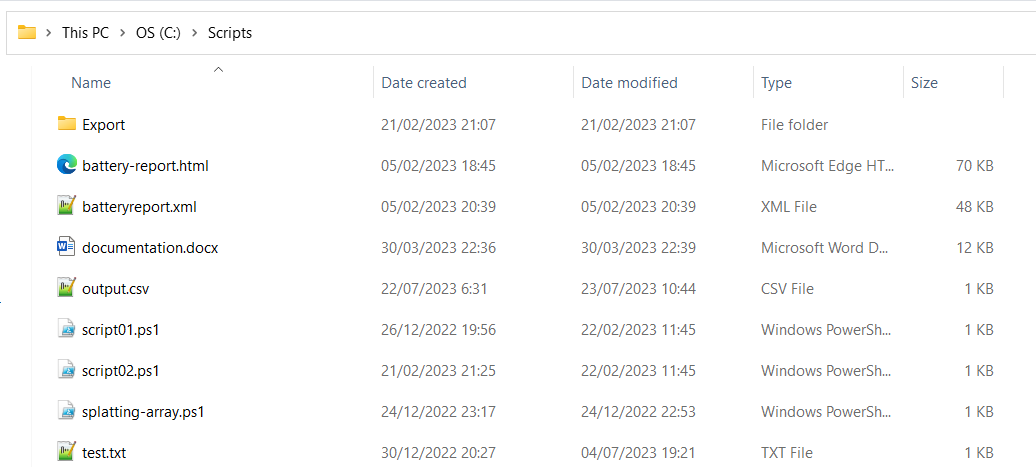
As the context, we will try to move some files or the whole folder from C:\Scripts to C:\powershell scripts including subfolders.
Using Move-Item Cmdlet
You can use Move-Item cmdlet to move the files from the source folder to the destination folder by specifying -Path and -Destination parameters. Each of them represents source and destination folder respectively.
The syntax is as follows:
Move-Item -Path "Source\file.txt" -Destination "Destination\"
- Replace
Source\file.txtwith the path to the file or files we want to move. We can use wildcards like*to move multiples files, such asSource\*.txtto move all.txtfiles. - Replace
Destination\with the path to the destination folder where you want to move the files. Be sure to include the trailing backslash.
For example, we want to move all PowerShell script files (.ps1) from C:\Scripts to C:\powershell scripts as mentioned earlier, then it will be as follows:
Move-Item -Path "C:\Scripts\*.ps1" -Destination "C:\powershell scripts\"
If we only want to move one file, then it will be as follows:
Move-Item -Path "C:\Scripts\script01.ps1" -Destination "C:\powershell scripts\"
To move the whole folder and its contents, it will be as follows:
Move-Item -Path "C:\Scripts\" -Destination "C:\powershell scripts\"
Using Robocopy
Robocopy is a command-line file transfer utility available in Windows. You can use it from PowerShell to move files and directories with various options.
Below is the example if we want to move one file from source to destination folder.
robocopy "C:\Scripts" "C:\powershell scripts\" "script01.ps1" /move
Below is the example if we want to move multiple files from source to destination folder. We use asterisk as wildcard and specify file extension of the files we want to move.
robocopy "C:\Scripts" "C:\powershell scripts\" "*.ps1" /move
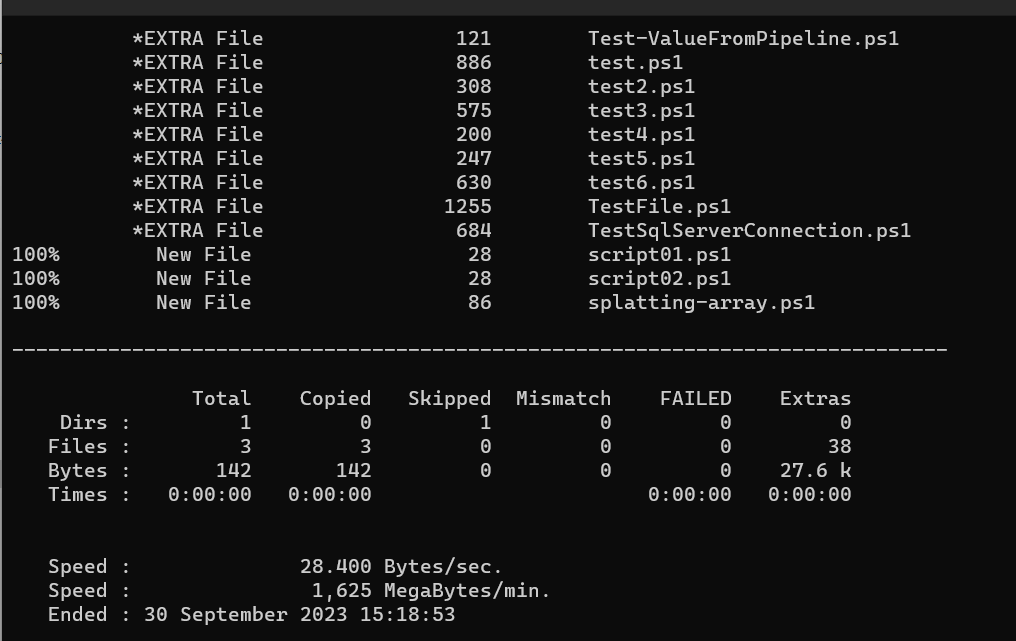
The result will look as follows where it shows the statistics after successfully moving the files:
Using Move cmd command
In PowerShell, we can also use Windows Cmd command, including Move command. This command will move (cut and paste) files from one folder to the other.
Below is the example if we want to move one file from source to destination folder.
move "C:\Scripts\script01.ps1" "C:\powershell scripts\"
Below is the example if we want to move multiple files from source to destination folder.
move "C:\Scripts\*.ps1" "C:\powershell scripts\"
Conclusion
To move files from one folder to another in PowerShell, we can use Move-Item cmdlet.
There is another tool available in Windows to achieve the same thing which is Robocopy. We can also use Windows Cmd command like move to literally move the files since we can run all Windows Cmd commands from PowerShell.