How to Get Disk Size and Free Space Using PowerShell
Introduction
Sometimes IT Admin or Software Engineers have a task to get information about disk space. Rather than navigating Windows Explorer to get information, they can automate using PowerShell which is much quicker.
In this article, we’ll walk through how to get information about disk size and free space using PowerShell.
Solution
Using Get-PSDrive Cmdlet
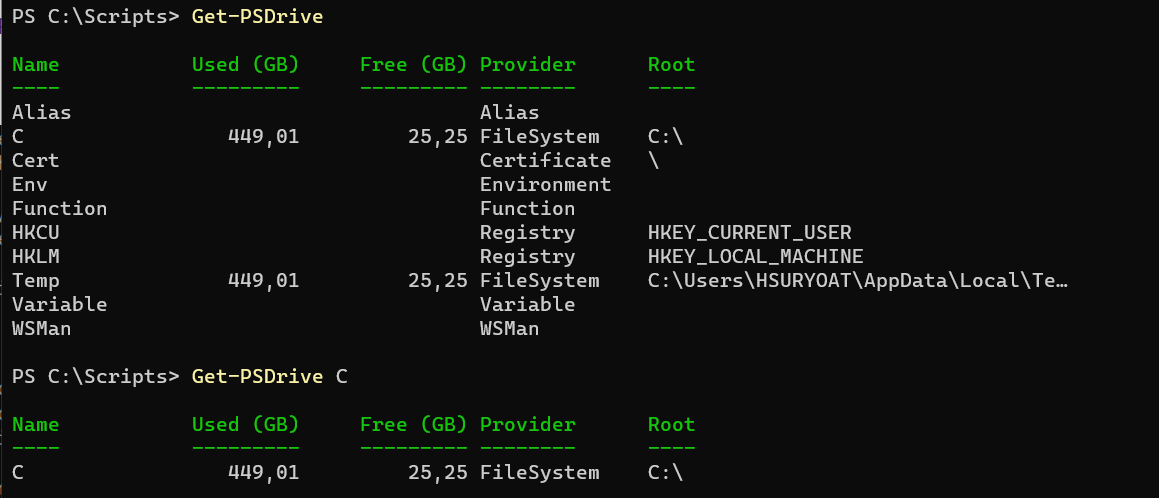
Get-PSDrive cmdlet can be used to get drive information.
Get-PSDrive
To get drive information on specific drive, we can specify the drive name:
Get-PSDrive -Name C
The information will looke like below image:
Using Get-Volume Cmdlet
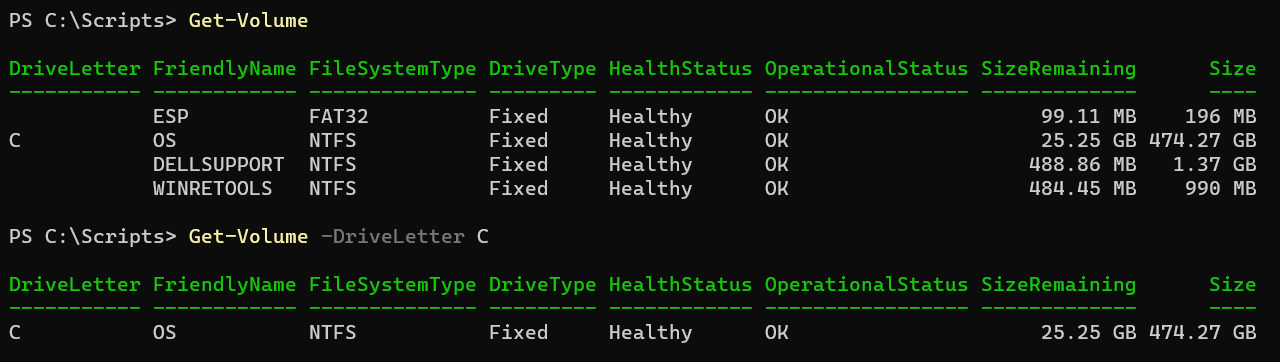
Get-Volume cmdlet can also be used to get disk size and free space.
Get-Volume
To get drive information on specific drive, we can specify the drive name:
Get-Volume -DriveLetter C
The information will looke like below image:
Using Get-WmiObject Cmdlet
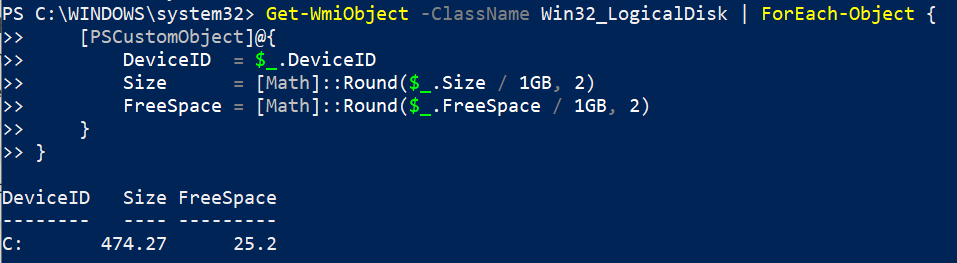
You can also use Get-WmiObject cmdlet to get disk size and free space.
Get-WmiObject -ClassName Win32_LogicalDisk | ForEach-Object {
    [PSCustomObject]@{
        DeviceID  = $_.DeviceID
        Size      = [Math]::Round($_.Size / 1GB, 2)
        FreeSpace = [Math]::Round($_.FreeSpace / 1GB, 2)
    }
}
The result will look like below image:
Using Get-CimInstance Cmdlet
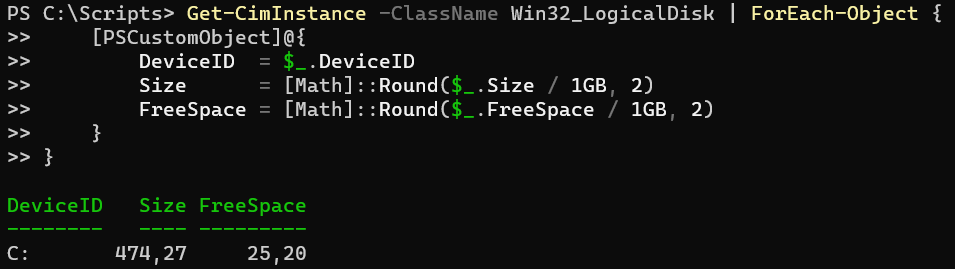
You can also use Get-CimInstance cmdlet to get disk size and free space.
Get-CimInstance -ClassName Win32_LogicalDisk | ForEach-Object {
    [PSCustomObject]@{
        DeviceID  = $_.DeviceID
        Size      = [Math]::Round($_.Size / 1GB, 2)
        FreeSpace = [Math]::Round($_.FreeSpace / 1GB, 2)
    }
}
The result will look like below image:
Using Wmic command
WMIC is a command-line tool in Windows that allows users to access system-related information, such as disk size. The commands can be run in PowerShell as well.
wmic logicaldisk get size, freespace, caption
Below is the result:

Using Fsutil command
Fsutil is another command line utility tools that can be used in PowerShell to get disk size and free space information.
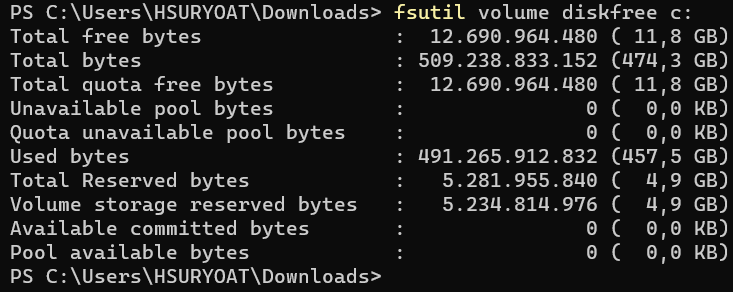
fsutil volume diskfree c:
Below is the result where the bytes are already formatted by default:
Conclusion
There are 4 cmdlet that can be used to get disk size and free space using PowerShell: Get-PSDrive, Get-Volume, Get-WmiObject, and Get-CimInstance.
There are also 2 other commands that can be used which are Wmic and Fsutil.