Change Excel Cell Background Color using PowerShell
Problem
In this blog post, we will show you how to change excel cell’s background color using PowerShell.
As the context, our original cell will look as follows where there is no background color filled:
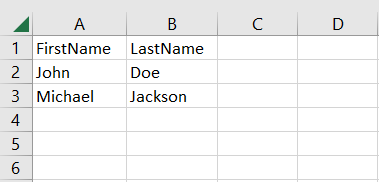
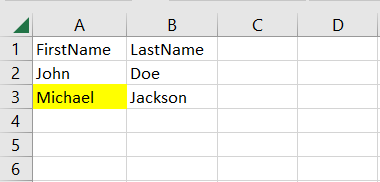
And after changing background color with Yellow color, it will look as follows:
Using Excel Com Object
After creating the object, we will open the Excel file to get workbook and active worksheet object we want to manipulate. Then, we will change cell’s background color by setting Color property of the cell.
using namespace System.Drawing

try {
    # Open excel file
    $excel = New-Object -ComObject Excel.Application
    $workbook = $excel.Workbooks.Open("C:\Scripts\Test.xlsx")

    # Get Active worksheet
    $worksheet = $workbook.ActiveSheet

    # Set cell's background color
    $worksheet.Cells.Item(3, 1).Interior.Color = [ColorTranslator]::ToOle([Color]::Yellow)

    # Save excel file
    $workbook.Save()
}
finally {
    # Close excel file
    $workbook.Close()

    $excel.Quit()
    [System.Runtime.Interopservices.Marshal]::ReleaseComObject($excel)
}
We enclose the code above with try-finally block because we want to make sure it will release the resource after modifying Excel that is performed at finally block.
Using ImportExcel Module
ImportExcel is an external module that is built based on EPPlus which is a very well-known library to work with Excel spreadsheets in .NET.
Before using ImportExcel module, we have to install it.
Install-Module -Name ImportExcel
And then following previous solution pattern, we have to create Excel object first before changing cell’s background color using SetColor method of BackgroundColor color property. In this module, which is based on EPPlus, we have to set PatternType property first before setting BackgroundColor property.
using namespace System.Drawing
using namespace OfficeOpenXml.Style

try {
    # Import the module
    Import-Module ImportExcel

    # Open excel file
    $excel = Open-ExcelPackage -Path "C:\Scripts\Test.xlsx"

    # Get Active worksheet
    $activeSheet = $excel.Workbook.View.ActiveTab

    # Set cell's background color
    $excel.Workbook.Worksheets[$activeSheet + 1].Cells["A3"].Style.Fill.PatternType = [ExcelFillStyle]::Solid
    $excel.Workbook.Worksheets[$activeSheet + 1].Cells["A3"].Style.Fill.BackgroundColor.SetColor([Color]::Yellow)
}
finally {
    # Close excel file
    Close-ExcelPackage $excel
}
Similar to previous solution, we enclose the script with try-finally block to avoid memory leak.
Using PSExcel Module
PSExcel is another module based on EPPlus library. You can find all the examples in github repository.
Before using this module, we have to install it.
Install-Module -Name PSExcel
In order to use the object, we must import the module first. Then, we create Excel object by specifying the path of our Excel file. This object will be used to get the active worksheet whose cell’s background color will be set.
using namespace System.Drawing
using namespace OfficeOpenXml.Style

try {
    # Import the module
    Import-Module PSExcel

    # Open excel file
    $excel = New-Excel -Path 'C:\Scripts\Test.xlsx'

    # Get Active worksheet
    $activeSheet = $excel.Workbook.View.ActiveTab

    # Set cell's background color
    $excel.Workbook.Worksheets[$activeSheet + 1].Cells["A3"].Style.Fill.PatternType = [ExcelFillStyle]::Solid
    $excel.Workbook.Worksheets[$activeSheet + 1].Cells["A3"].Style.Fill.BackgroundColor.SetColor([Color]::Yellow)

    # Save excel file
    $excel | Save-Excel
}
finally {
    $excel | Close-Excel
}
We also enclose the script with try-finally block to avoid memory leak.
Conclusion
To change excel cell’s background color using PowerShell, we can use excel module/libraries to manipulate excel.
We can use Excel Com Object which is based on .NET Framework. We can also use PowerShell external modules like PSExcel and ImportExcel. ImportExcel is an excellent module which is based on EPPlus library, a popular C# libary for woking with Excel from .NET.
PSExcel is the alternative of ImportExcel module. PSExcel is also based on EPPlus but this module is no longer maintained as stated in its GitHub repository. If it doesn’t provide functionality that you need, you should contribute to the source code by yourself.